How to Generate an EDF With Skydo’s EDF Generator? A Step-by-Step Guide

If you export services from India, starting from the 1st of October, you might have to file an Export Declaration Form (EDF) with your Authorized Dealer (AD) bank every month. Skydo’s free EDF generator builds that form for you from your invoices, and you don’t need a Skydo account to use it.
This guide walks you through how you can easily generate your EDF in 6 simple steps.
How to Generate an EDF in 6 Simple Steps
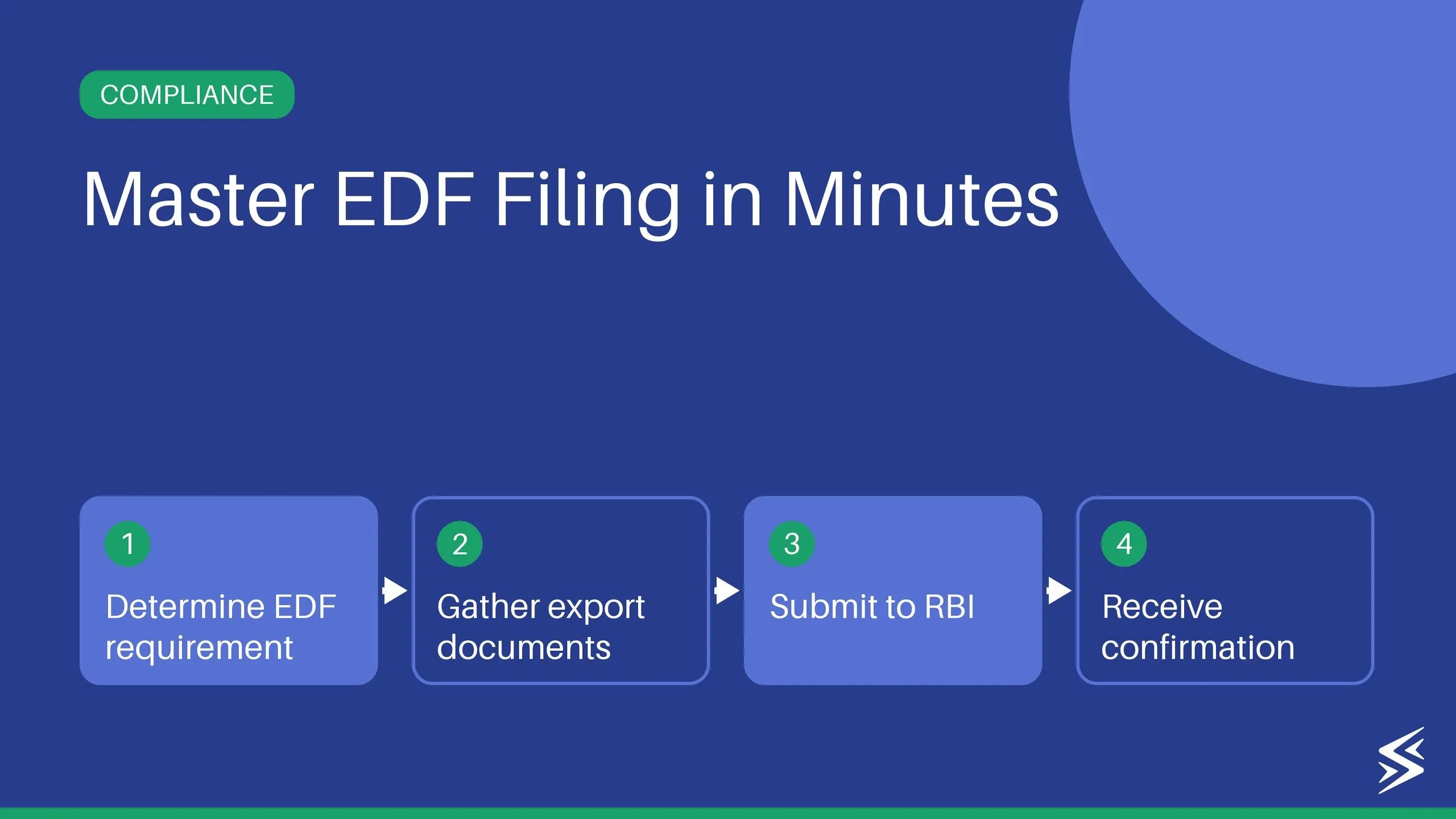
To generate an EDF with Skydo, you upload your invoices, check the details read from them, add your exporter and bank details, answer a few questions about the export, review everything and download the filled form as a PDF.
Step 1: Upload Your Invoices
 Skydo EDF Generator Tool
Open Skydo’s EDF generator and click Create new EDF.
Upload all your invoices for the month. The tool reads the key details from each one, so you don’t have to type them in. You can also enter an invoice manually if you don’t have the file. Then click Continue.
 Skydo EDF Generator Tool: Upload Invoice
Step 2: Check Your Invoice Details
 Skydo EDF Generator Tool: Check Invoice Details
Each invoice opens with the details read from it, shown next to the invoice so you can compare the two. Fix anything that doesn’t match, and fill in your client’s name, address and country if they’re missing. A few fields need your input:
- SAC code: search for the Services Accounting Code (SAC) that matches your service. The description of services fills in from it, and you can edit the wording.
- Exchange rate: enter the rate your bank applies, or the rate you account the invoice at. The tool converts the value to INR and prints it in words on the EDF.
Check each invoice the same way, then click Continue.
Step 3: Add Your Exporter and Bank Details
 Skydo EDF Generator Tool: Exporter and Bank Details
Add your business details as they appear on your PAN or GST certificate. Your legal name and address come pre-filled from the invoice. PAN is required, while GSTIN and IEC are optional.
- Bank branch: search by bank, branch, city or IFSC, and pick the AD bank branch through which your export payments are realized.
- AD code: Your bank assigns this code to the branch for export transactions. You won’t find it in the IFSC list, so ask your bank or check your EDPMS records.
Then click Continue.
Step 4: Fill In the Export Details
 Skydo EDF Generator Tool: Export Details
Answer a few questions about how you delivered the service and how you’ll be paid. Most of these are quick choices. Three fields need a closer look:
- Mode of realisation: how the payment reaches you. Pick Others if your client pays by bank transfer or remittance. L/C and BG apply only when the payment is backed by a letter of credit or a bank guarantee.
- Payment will be realised on or before: service export payments must arrive within 9 months of the invoice date, or 12 months if you invoice in INR. Click Use 9 months after the invoice date to set it.
Step 5: Review Your EDF
 Skydo EDF Generator Tool: Review your EDF
Check all your details on one screen. Click Edit details on any section to fix it without losing your progress.
When everything looks right, tick the box confirming you’ve checked the details against your invoices, and click Generate EDF.
Step 6: Download Your EDF
 Skydo EDF Generator Tool: Download the document
Click Download EDF to save the filled form as a PDF. A preview of the form appears below, so you can check it first. Your progress is saved only in this browser, so keep a copy.
The generator doesn’t submit the EDF for you. Check it against your AD bank’s requirements and submit it to your bank within 30 days from the end of the invoice month.
What Do You Need Before You Generate Your EDF?
To generate an EDF with Skydo, keep your invoices for the month, your business PAN, a SAC code for each service and your bank branch details ready, along with a few other details:
- Your invoices for the month
- Business PAN
- Legal name and registered business address
- Client name, address and country
- SAC code for each service
- Exchange rate to convert to INR
- AD bank branch or IFSC
- AD code, GSTIN and IEC, if you have them
Is Skydo’s EDF generator free?
Yes. Skydo’s EDF generator is free for Indian service exporters, and you don’t need a Skydo account to use it.
Does the EDF generator submit my EDF to the bank?
Can I add more than one invoice to a single EDF?
Can I generate an EDF without an invoice file?
Where do I find my AD code?
Which SAC code should I use on my EDF?
When do I need to submit my EDF to the bank?
Can I come back to an EDF I haven’t finished?